So, I recently came across a bunch beautifully designed and developed desktop apps on my Linux. Now, as a Linux user, I am used to overlooking design and aesthetics over functionality. Linux desktop developers usually don’t spend their energy on making their apps more user-friendly and appealing instead they invest it in improving its functionality. And it is generally assumed by them that the user is someone who is well versed in Linux Vedas and can handle the “rugged” nature of their desktop apps. But this notion is slowly changing with the introduction of new cross-platform desktop application frameworks like Electron. I have been using a few Electron apps for a couple of months now and I will just leave it to you to decide how aesthetically pleasing they are.
[Gallery]
What is Electron ?
Electron is an open source library developed by GitHub for building cross-platform desktop applications with HTML, CSS, and JavaScript. Electron accomplishes this by combining Chromium and Node.js into a single runtime and apps can be packaged for Mac, Windows, and Linux.
Want to build cross-platform desktop applications ? Here’s how you go about setting up Electron in Linux. First, we install npm to manage Node.js packages :
$ sudo apt-get install npmThen we install Node.js :
$ curl -sL https://deb.nodesource.com/setup_6.x | sudo -E bash -
$ sudo apt-get install -y nodejs
Finally, we install Electron package. This command installs Electron globally but you can install it locally for your project.
$ sudo npm install -g electronNow that we have installed Electron let us try a “Hello World” example as a part of our initiation ceremony! Any Electron app source code primarily has three important components, the JavaScript, the HTML (CSS optional) and the JSON file called package.json.
This package.json file is important with respect to Electron to define the app name, version and its main process, which usually is the JavaScript (index.js).
{
  "name" : "Hello World",
  "version" : "0.1.0",
  "main" : "main.js"
}
The JavaScrip file consists of all the Electron APIs and it is necessary to define const {app, BrowserWindow} = require('electron') in the .js file to include the Electron APIs. In this file you can include the rest of your app’s specific main process code. You can also put them in separate files and require them here.
function createWindow () {
  // Create the browser window.
  win = new BrowserWindow({width: 800, height: 600})

  // and load the index.html of the app.
  win.loadURL(`file://${__dirname}/index.html`)

  // Open the DevTools.
  win.webContents.openDevTools()

  // Emitted when the window is closed.
  win.on('closed', () => {
    // Dereference the window object, usually you would store windows
    // in an array if your app supports multi windows, this is the time
    // when you should delete the corresponding element.
    win = null
  })
}
The BrowserWindow object creates a Window using the given width and height dimensions. When Electron has finished initialization and is ready to create browser windows we call the app.on('ready', createWindow) method. Some APIs can only be used after this event occurs.
At last, we define the HTML tags we want to use in our index.html file and design our app as per our requirements. In this example, we will stick to the h1 tag.
To execute our Electron app, go to the project directory and execute with the electron command:
$ electron .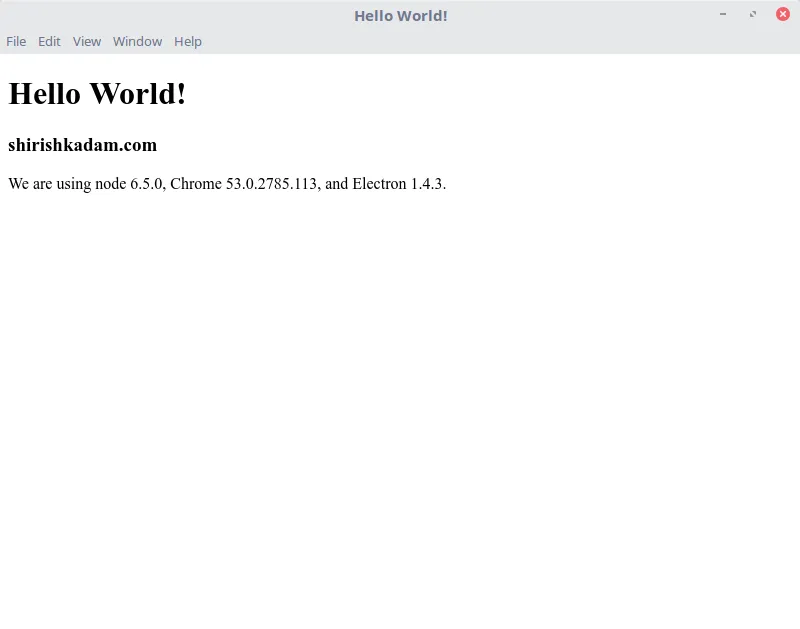 Hello World - Electron App running on Linux Mint 18
Download the Hello World example here:
Further Readings :
- [Building a desktop application with Electron](https://medium.com/developers-writing/building-a-desktop-application-with-electron-204203eeb658#.8l633vbv1) - A detailed guide on building your very own sound machine using JavaScript, Node.js and Electron. (Must Read)
- Official [Electron](http://electron.atom.io/) website.
- [Electron Apps Showcase](http://electron.atom.io/apps/) (Must check out).
- Electron on [GitHub](https://github.com/electron/electron).
Let me know your thoughts and experiments with Electron in the comments section below.